
Choose the crew and crew chief
Add crew members for the selected event days and identify who leads the shift. Enter their pay while you are planning the booking.
Choose who works each event, name the crew chief and enter the pay for the gig. Crew can review and accept their shifts in the crew portal, then submit an invoice after the work.
Crew
Assign a crew chief with agreed pay. Jordan accepts the shift in the crew portal, invoices the hours worked and you approve it.
Explore crew management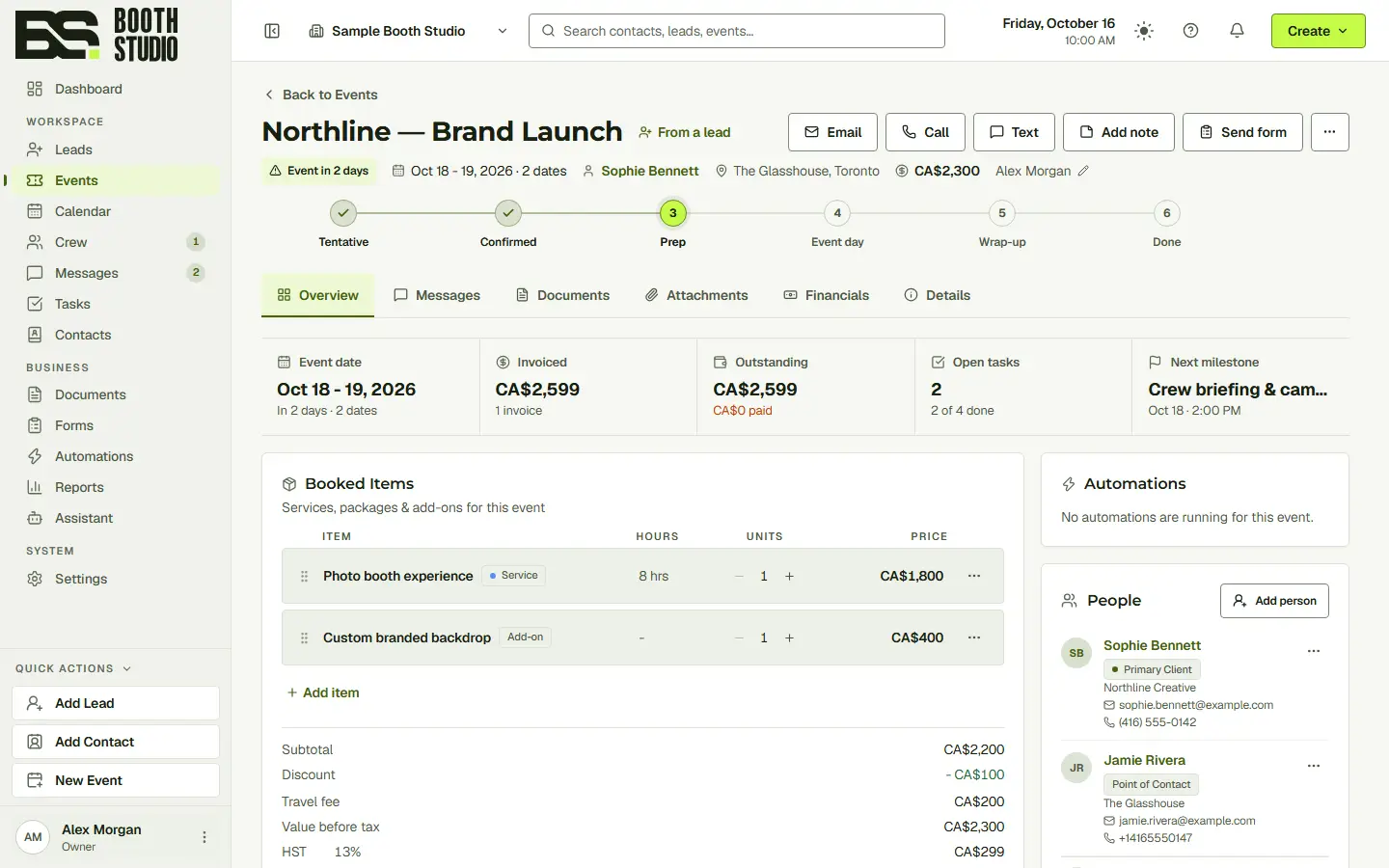
Playing Forms in 6s
Now staff the event.
An assignment is only the start. See the crew member’s response, keep the pay details with the event and review their invoice once the shift is finished.
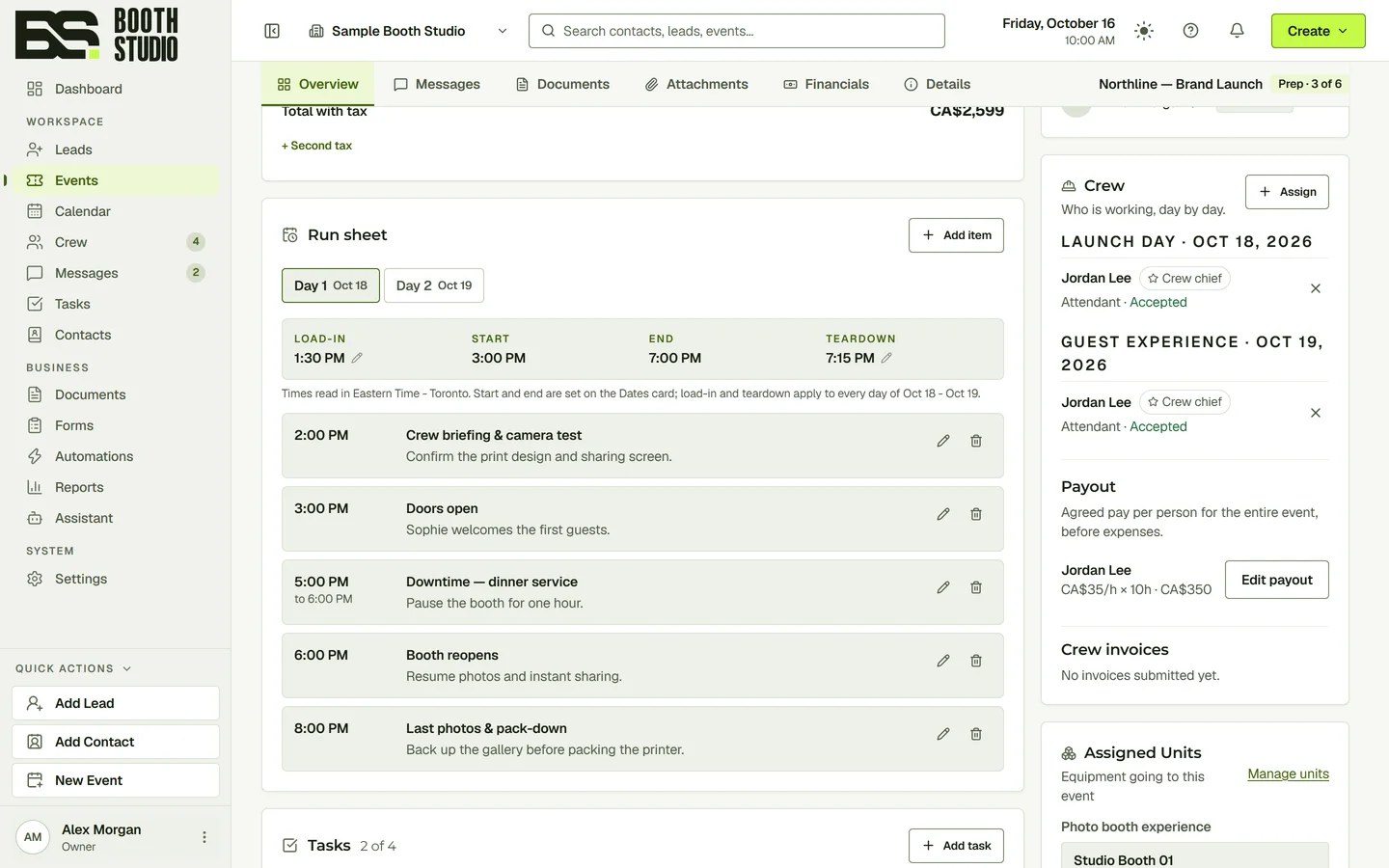
Add crew members for the selected event days and identify who leads the shift. Enter their pay while you are planning the booking.
Crew members use their own portal to review offered shifts and accept the work. Keep their response with the assignment.
After a shift, crew can submit their hours and invoice for approval. Review the invoice against the event and the work assigned.
Yes. Assign a crew chief for the selected days when building the event’s crew.
Yes. The crew portal lets crew members review and accept offered shifts.
The demonstrated workflow submits the invoice for approval. It does not automatically pay the crew member.
Start with the full CRM. Choose the seats, storage and communication allowances your team needs.