
Choose what starts the workflow
Start with a CRM trigger: a lead is created, a form is submitted or a document is sent. Add the actions that should follow it.
Build a workflow that starts when a lead arrives or a document is sent. Add waits, send emails, create tasks and choose different paths based on the client’s response.
Automations
Read the proposal follow-up on its canvas: it waits for the client to open the proposal, sends a reminder if they don't and branches on their answer. Then switch it on.
Explore automations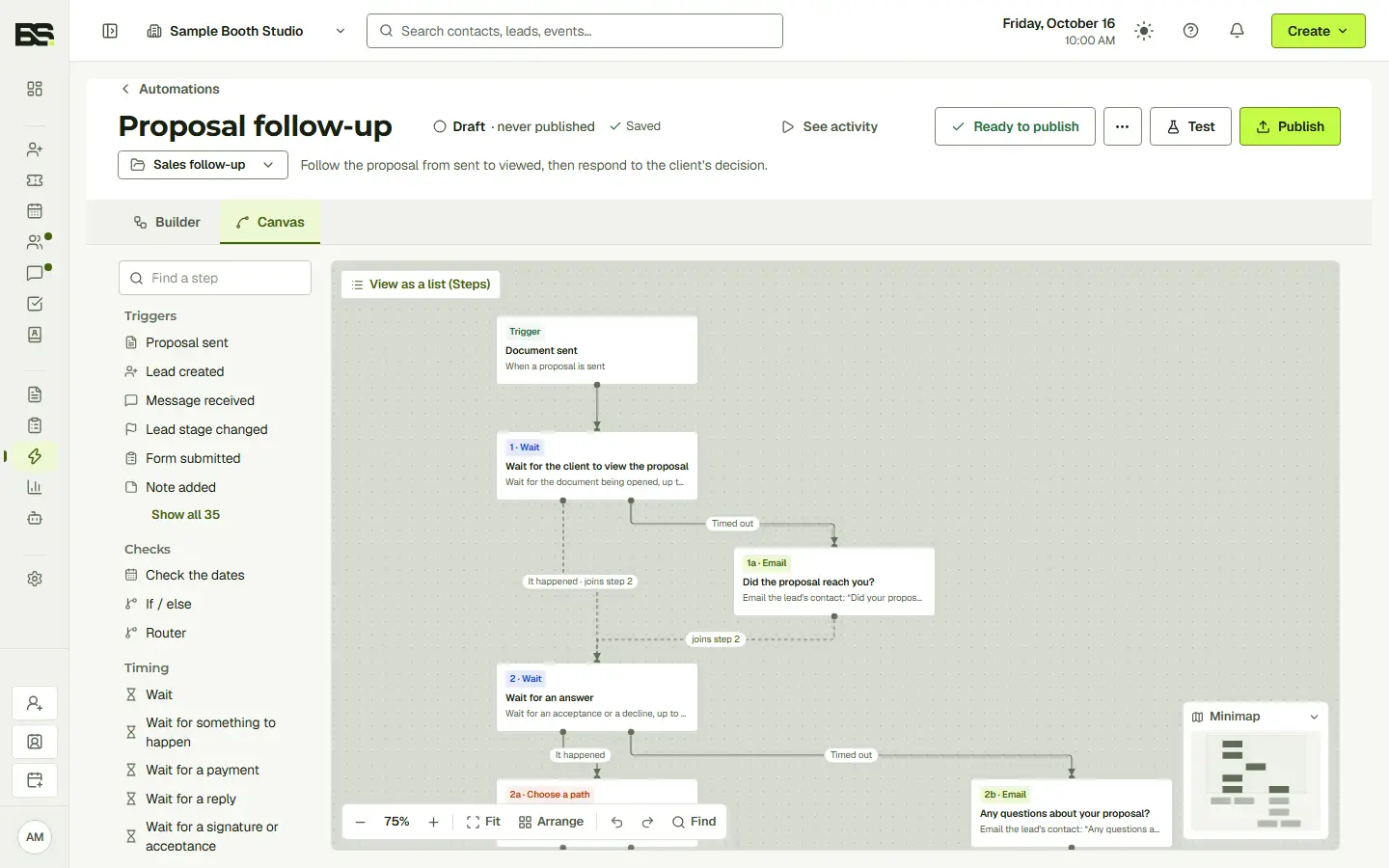
Playing Leads in 6s
Next time, let the follow-up run itself.
A proposal has been sent. Give the client time to respond, then take the next step based on what happens. The visual canvas shows each action and the paths between them.
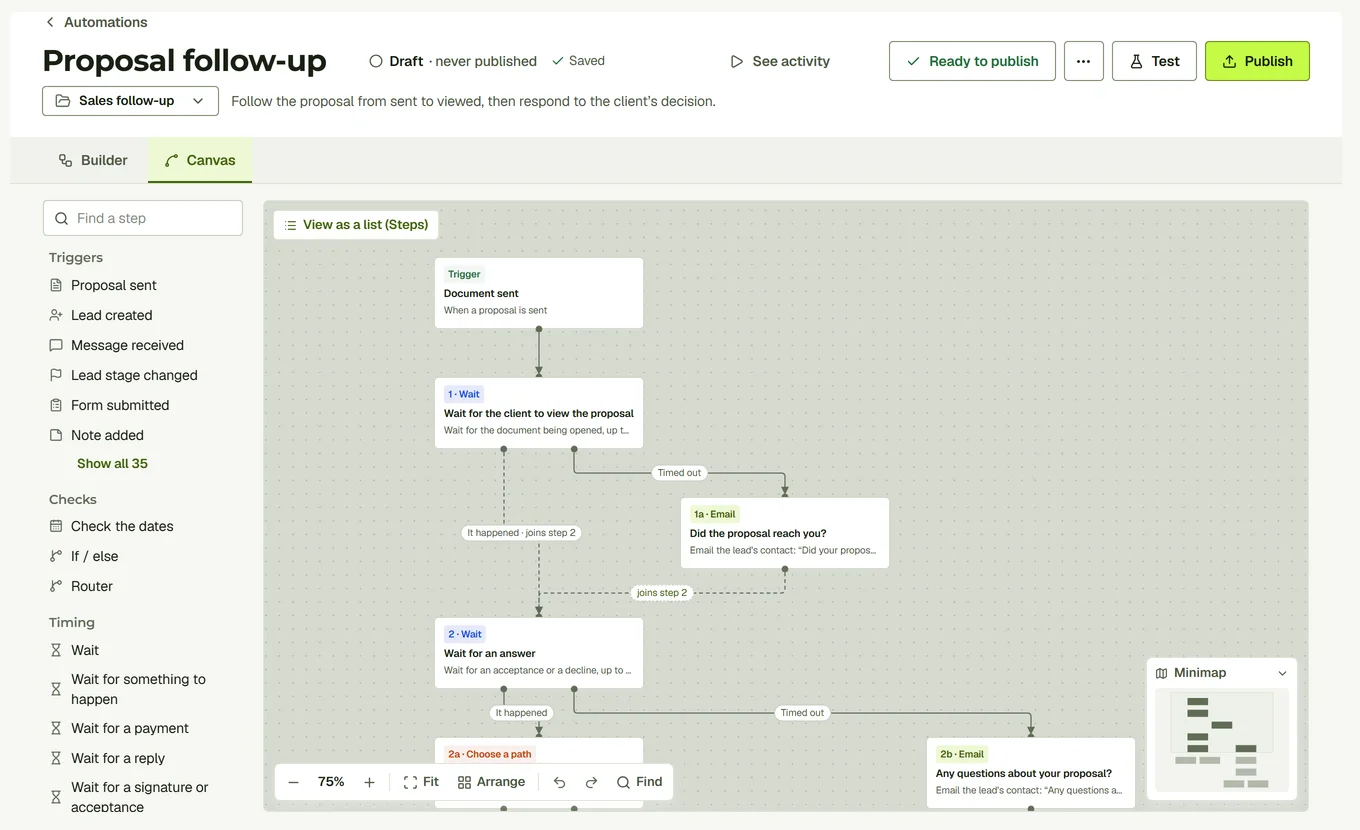
Start with a CRM trigger: a lead is created, a form is submitted or a document is sent. Add the actions that should follow it.
Use waits and conditions to control timing. Branch the workflow when different outcomes need different actions.
Check the email and task actions on the canvas, then test the workflow before publishing. You control the process your business uses.
Change the trigger, timing and message below. This is a disconnected example; nothing is sent.
Any matching trigger can start a run.
Each lead goes through this once, ever. Later triggers are ignored.
Start a run No entry conditions
Email the lead's contact
Try up to 3 additional actions in this sample.
Yes. The Automations module is included in every plan. Texts, calls and managed email it sends count against your plan's allowances.
Yes. Use conditions and branches to choose the next action based on what happens in the workflow.
No. The sample builder and walkthrough use fictional data and are not connected to your business or a sending service.
Start with the full CRM. Choose the seats, storage and communication allowances your team needs.